Skip to Content
PT Mithra IT Mandiri Nusantara
  • Home
  • Shop
  • Services
  • About
  • 0
  • Sign in
  • Contact Us   
PT Mithra IT Mandiri Nusantara
  • 0
    • Home
    • Shop
    • Services
    • About
  • Sign in
  • Contact Us   
  1. All products
  2. Mapbox
  3. [19.0] Delivery Route Planner with Mapbox
  4. Mapbox
Pricelist: Pricelist USD Pricelist
[19.0] Delivery Route Planner with Mapbox
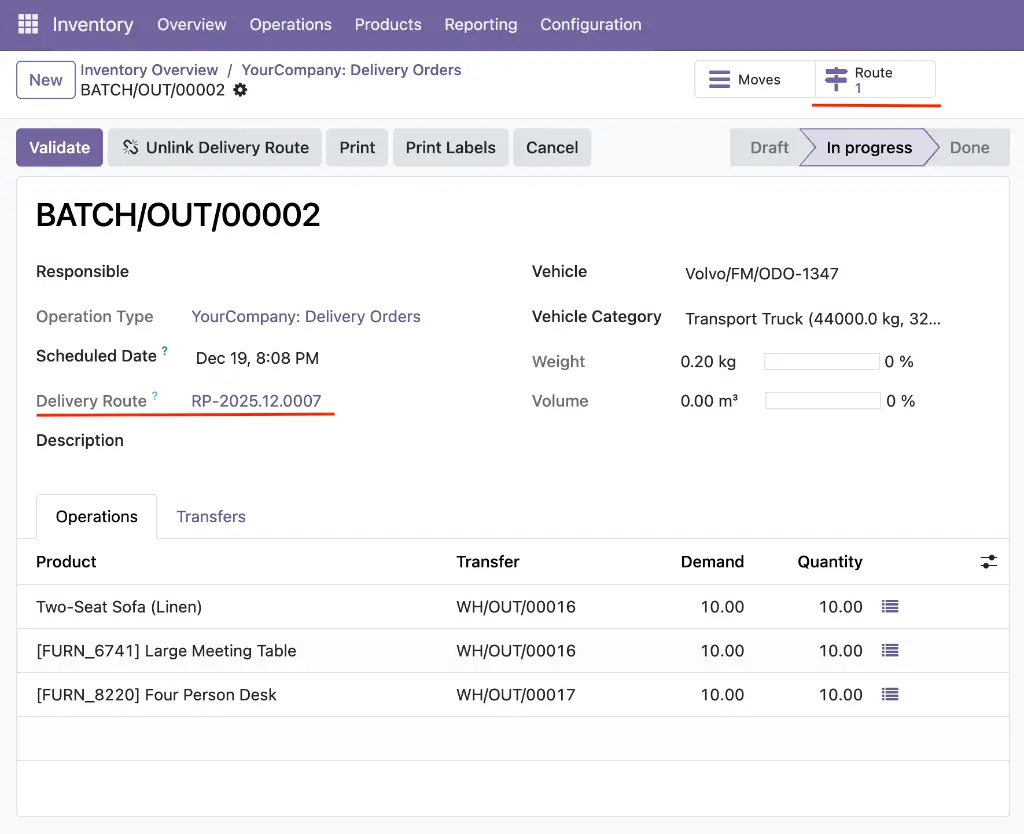
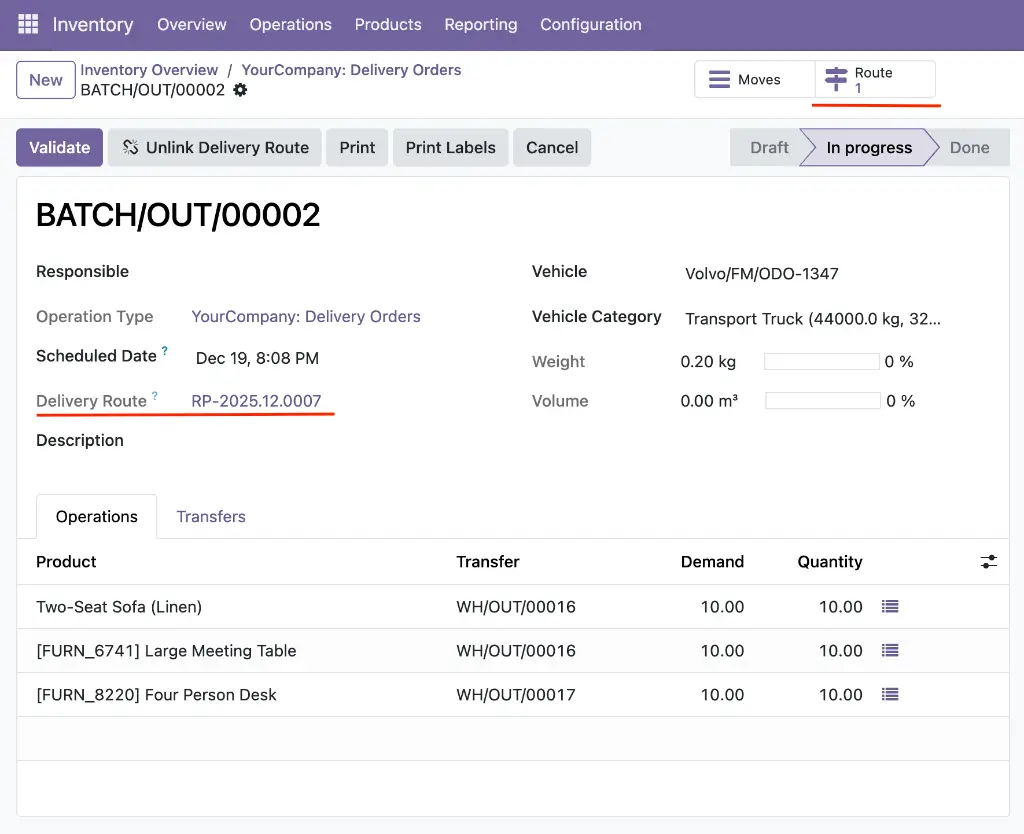
Screenshot 2025-12-19 at 20.24.48.webp
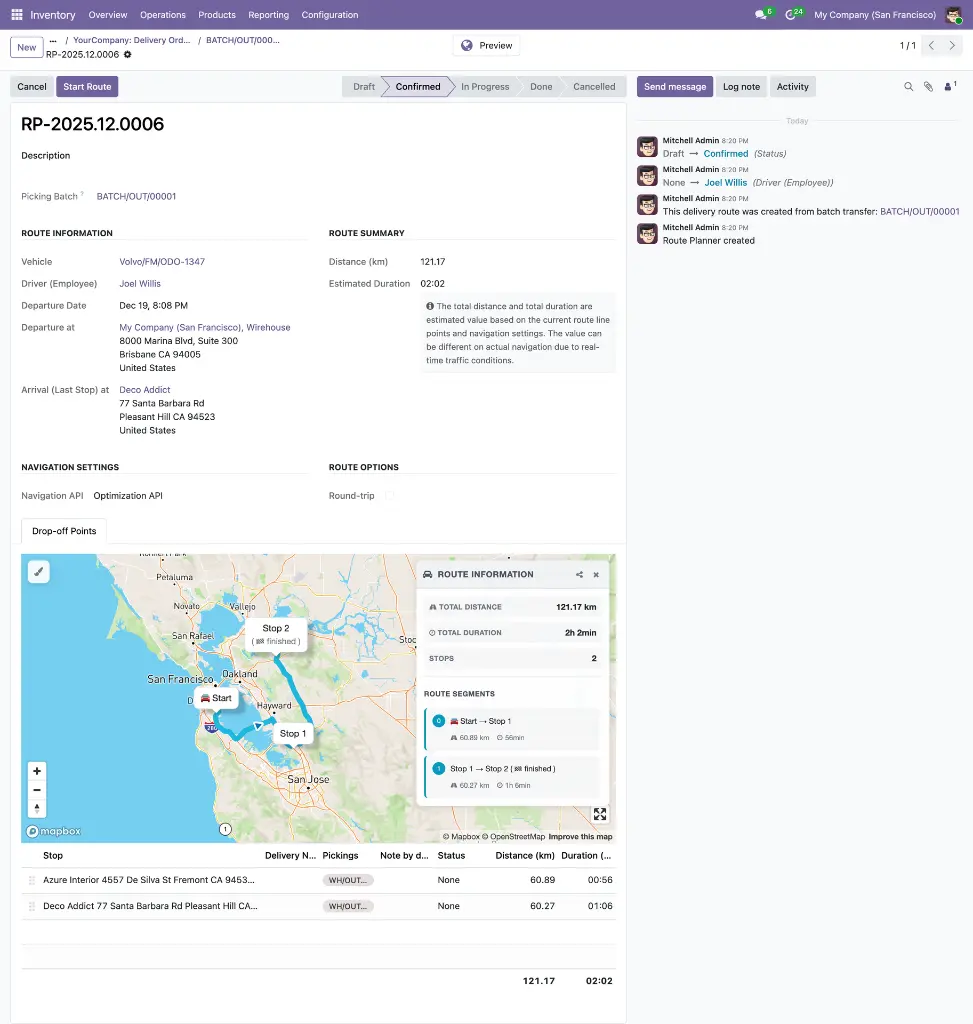
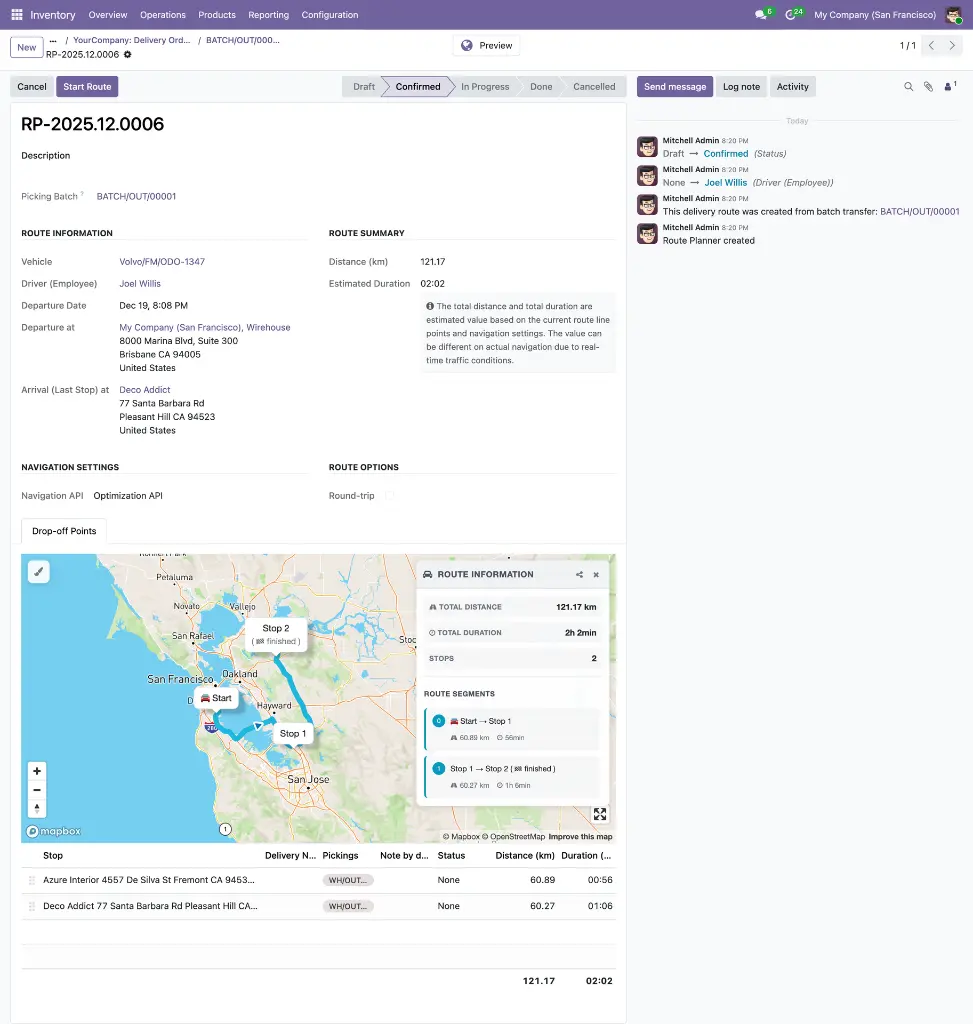
screencapture-35-209-158-83-8069-odoo-inventory-2-batch-transfers-1-mapbox-gl-route-planner-6-2025-12-19-20_33_10.webp
  1. [19.0] Delivery Route Planner with Mapbox
  2. Screenshot 2025-12-19 at 20.24.48.webp
  3. screencapture-35-209-158-83-8069-odoo-inventory-2-batch-transfers-1-mapbox-gl-route-planner-6-2025-12-19-20_33_10.webp

[19.0] Delivery Route Planner with Mapbox

(0 review)

Turn any in-progress batch transfer into a fully geocoded, optimized delivery route with a single click — and equip drivers with PDF manifests and per-stop picking details right in the portal. An extended version of the Route Planner Suite that connects Odoo Inventory directly to multi-stop route planning, Mapbox dispatch, and a delivery-aware driver experience.

List of modules:
1. base_mapbox_gl

2. web_view_base_mapbox_gl
3. web_view_list_with_mapbox_gl
4. route_planner
5. route_planner_mapbox_gl
6. website_route_planner_mapbox_gl
7. delivery_route_planner_mapbox_gl
8. website_delivery_route_planner_mapbox_gl

$ 0.00 $ 0.00

Add to cart
Contact Us

Take a look at the demo

Demo (v19.0)
Login  |  Password
1. guest  |  guest
2. portal  |  portal

Product Overview

Delivery Route Planner — Mapbox GL is the inventory-to-dispatch bridge for Odoo. It adds two modules — delivery_route_planner_mapbox_gl and website_delivery_route_planner_mapbox_gl — on top of the Route Planner Suite, wiring Odoo's batch transfers, stock pickings, warehouse locations, and fleet assignments directly into the route planning workflow and into the driver portal.

The result: your warehouse team continues to work with familiar batch transfers, dispatchers get an automatically generated, geocoded, Mapbox-optimized delivery route with driver, vehicle, weight, volume, and stop grouping already figured out, and drivers see picking references and downloadable PDF manifests on every portal screen.

BUILT ON

Route Planner Suite

This product includes everything in our Route Planner Suite — the full Mapbox GL foundation layer, the Route Planner application, the Mapbox visualization extension, and the driver portal. All six suite modules are bundled in so you get the complete planning, visualization, and driver-facing experience out of the box, plus two delivery-specific extensions on top.

For the full feature breakdown of those six modules, see the dedicated product page: Route Planner with Mapbox

This page focuses on what Delivery Route Planner adds on top of that suite.


What Delivery Route Planner Adds

Two purpose-built extension modules — one for the backend dispatch workflow, one for the driver portal — bring inventory and delivery context all the way through the route lifecycle.

EXTENSION 01 - BACKEND

Delivery Route Planner — Mapbox GL

A dedicated Odoo module that integrates the inventory and fleet flows with the Route Planner application. It introduces a one-click route generator on batch transfers, smart stop grouping by customer, weight and volume tracking per stop, and a robust address-resolution mechanism that works with complex warehouse hierarchies.

Module dependencies:  stock_picking_batch route_planner_mapbox_gl

Why it Exists

Before this module, turning a warehouse batch into a usable delivery route meant manually creating the route, re-entering the driver and vehicle, typing in each delivery address, remembering to group multiple drops to the same customer, and running the optimization. Delivery Route Planner automates all of that — validating your data, resolving the departure point, grouping customers, and optimizing the sequence — so a dispatcher goes from batch-ready to route-ready in a single click.

EXTENSION 02 - DRIVER PORTAL

Website Delivery Route Planner — Mapbox GL

Extends the driver portal with delivery-specific information for routes linked to a batch transfer. Adds a downloadable PDF manifest accessible from every portal screen, surfaces picking document references at each stop in the map sidebar and the stops table, and shows the batch transfer reference on the route detail page.

Module dependencies:  delivery_route_planner_mapbox_gl website_route_planner_mapbox_gl

Why it Exists

Drivers in the field need more than just stop coordinates — they need the picking documentation for proof of delivery, the batch reference for dispatch coordination, and quick access to the manifest as a PDF backup. This module closes the gap between the inventory-aware backend and the driver-facing portal so the full delivery context travels with the driver from depot to doorstep. All delivery-specific UI is conditionally rendered — manual routes with no batch transfer are unaffected and display exactly as they do in the base portal.


How It Works

The end-to-end workflow from warehouse to driver:

1. Create a Batch Transfer with your delivery pickings in Odoo Inventory.

2. Assign a Driver and Vehicle to the batch.

3. Set the batch to In Progress.

4. Click Create Delivery Route. The module validates all prerequisites and generates the route.

5. The route opens on an interactive Mapbox map with every stop grouped, geocoded, and optimally ordered.

6. Review weight and volume per stop, confirm, and dispatch to the driver's portal.

7. The driver opens the portal and sees the route with batch reference, per-stop picking documents, and a Delivery Manifest button that opens the Odoo batch picking report as a PDF — available on the route card, the detail page, and the interactive map sidebar.

Under the hood, clicking Create Delivery Route runs a full prerequisite validation (driver and vehicle on the batch, latitude and longitude on every delivery address, resolved departure address), groups all pickings by customer, sorts the stops alphabetically, and creates the route using the Mapbox Optimization API with the pre-configured "Delivery" route type. Driver, vehicle, responsible user, scheduled date, and description are all copied over from the batch automatically, and clickable chatter messages are posted on both records. On the driver side, the portal automatically surfaces all picking references and manifest links whenever a route is linked to a batch, and hides those UI elements cleanly for routes that aren't.


Key Features

All features below are additions contributed by the Delivery Route Planner module on top of the underlying Route Planner Suite.

Route CreationStop ManagementInventory & Fleet IntegrationLifecycle ManagementAudit TrailDriver Portal Delivery Features

Route Creation


  • One-Click Route Generation
    A Create Delivery Route button appears on batch transfers that are In Progress and don't yet have a route. One click produces a complete, validated, optimized delivery route.

  • Delivery Route Type
    Generated routes are automatically typed as "Delivery," enforcing vehicle, driver, and departure date at confirmation, and defaulting to a 15-minute service duration per stop.

  • Smart Stop Grouping
    Multiple pickings to the same customer are automatically merged into a single route stop; stops are sorted alphabetically by customer name.

  • Optimization API by Default
    Routes generated from batch transfers use the Mapbox Optimization API for efficient stop sequencing, adjustable from the route form if needed.

  • Comprehensive Prerequisite Validation
    Before creation, the system checks that the batch has a driver and vehicle, every picking has a delivery address with both latitude and longitude, every picking has a source location, and the resolved departure address has valid coordinates. Each failure produces a specific, actionable error message

Stop Management


  • Weight & Volume per Stop
    Total weight and volume are calculated for each delivery stop based on the assigned pickings' move lines, using the system-configured units of measure (e.g., kg, m³).

  • Transfer Details per Stop
    Each route stop shows the list of assigned transfers, picking count, and weight/volume breakdown inline on the list view and in a dedicated section on the stop form

Inventory & Fleet Integration


  • Auto-Assignment from Batch
    Driver, vehicle, responsible user, scheduled date, and description are copied from the batch transfer to the route automatically — no duplicate data entry.

  • Bidirectional Linking
    Batch transfers show a Delivery Route smart button opening the route; the route shows the source batch as a read-only link; individual pickings show which route and route stop they belong to via computed fields

  • Location Address Hierarchy
    The departure address is resolved by checking the batch's dock location first, then the first picking's source location, then walking up through parent locations until an address is found. Works with arbitrarily complex warehouse structures

  • Address Field on Stock Locations
    Adds an Address field (editable) and a Real Address field (computed from the hierarchy) to every stock location, so a partner can be associated with any warehouse, zone, or dock.


Lifecycle Management


  • Route Cancellation on Batch Cancel
    When a batch transfer is cancelled, any associated route in Draft or Confirmed state is automatically cancelled and the event is logged in the chatter.

  • Unlink Draft Routes
    A dedicated Unlink Delivery Route button lets dispatchers delete a Draft route from a batch (for example after editing pickings or fixing addresses) so a fresh route can be generated.

  • Duplicate Prevention
    Three layers of protection — hidden UI button, application-level error on RPC, and a database-level unique constraint — ensure one batch can have at most one route.

  • Cleanup on Delete
    Deleting a route or a single route stop automatically removes the picking associations so transfers never point to records that no longer exist.


Audit Trail


  • Chatter Integration
    Route creation, confirmation, cancellation, and unlinking events are logged with clickable links in the chatter of both the batch transfer and the route, creating a complete audit trail tied to Odoo's native mail system.

Driver Portal Delivery Features


  • PDF Delivery Manifest
    One-click access to the Odoo batch picking report as a PDF, opened inline in the browser. The filename includes the batch reference (e.g. delivery_manifest_BATCH/OUT/00001.pdf). Served through an authenticated portal endpoint (/my/route-overview/{token}/manifest) — unauthenticated requests and routes without a batch return 404.

  • Manifest Button on Route Cards

  • A manifest icon button on every route card in the portal overview, so drivers can grab the PDF straight from the dashboard without opening the route first

  • Manifest Button on Route Detail Page
    A prominent Delivery Manifest button in the route detail action bar for drivers reviewing the route before departure.

  • Manifest Button in Map View
    The same manifest is one tap away while navigating — a button above the waypoint list in the interactive map sidebar.

  • Batch Transfer Reference
    The linked batch transfer document is displayed in the route detail header, giving drivers a direct cross-reference back to inventory.

  • Transfer Column in Stops Table
    An extra column in the route detail stops table listing the picking documents assigned to each stop, comma-separated (e.g. WH/OUT/00001, WH/OUT/00002)

  • Picking References in Map Sidebar
    Each waypoint in the interactive map sidebar shows the associated picking names with a barcode icon — including both intermediate stops and the final destination, handled consistently.

  • Conditional Feature Visibility
    All delivery-specific UI elements (manifest buttons, batch reference, Transfer column, picking names) are automatically hidden when a route has no linked batch transfer. Manual routes continue to display exactly as they do in the base portal.


Use Cases & Benefits


Warehouse-to-Road in Seconds

One click turns a batch transfer into a geocoded, optimized, driver-assigned delivery route — replacing 15+ manual steps of copying addresses, assigning drivers, and ordering stops.

Fewer Data-Entry Errors

Prerequisite validation catches missing coordinates, unassigned drivers, and misconfigured warehouse addresses before a route is created, with specific messages identifying exactly what needs to be fixed.

Smarter Stop Planning

Smart grouping merges multiple pickings to the same customer into a single stop, so drivers never make two trips to the same address.

Capacity-Aware Dispatch

Weight and volume per stop give dispatchers immediate insight into load distribution, helping them match routes to vehicles without guesswork.

Works With Complex Warehouses

The location hierarchy resolver handles multi-level warehouse structures — docks, sub-zones, parent locations — so you're not forced to reorganize your inventory setup to use it.

Optimized Travel Time

The Mapbox Optimization API automatically selects the most efficient visit order for every generated route, reducing fuel, time, and missed delivery windows.

Tight Inventory-Route Sync

Cancelling a batch cancels its route automatically; deleting records cleans up picking references. Route and inventory state never drift apart.

Native Odoo Flow

No new screens to learn — dispatchers work inside batch transfers they already use, and the route opens with the same Route Planner UI the rest of the team is familiar with.

Full Audit Trail

Every creation, confirmation, cancellation, and unlink action is logged to the chatter of both records, giving operations and compliance teams complete traceability.

Proof-of-Delivery Ready

The PDF delivery manifest is always one click away — from the dashboard, the route detail page, or even the interactive map — so drivers always have the picking documentation they need for customer signatures.

Picking Visibility in the Field

Drivers see exactly which transfer documents belong to each stop on the map and in the stops table — no more digging into a separate system to figure out what's in the box.

Graceful Fallback for Manual Routes

Delivery-specific UI only appears when it makes sense. Manual routes (no batch transfer) continue to display cleanly in the portal with nothing out of place.


WHO IT'S FOR

Warehouse and logistics teams running Odoo Inventory who want to convert batch transfers directly into multi-stop delivery routes, dispatchers managing multiple daily delivery runs, drivers who need PDF manifests and picking references at their fingertips in the field, and operations managers who need tight integration between inventory, fleet, route planning, and driver execution — without custom development. Ideal for companies already using Odoo's Batch, Wave & Cluster Transfers and Dispatch Management System.


Configuration Quick Reference

Three Odoo Inventory settings need to be enabled, and each source warehouse location needs an address configured with geocoded coordinates.

Required Inventory Settings

Navigate to Settings -> General Settings: Inventory and enable:

Section

Settings

Operations

Batch, Wave & Cluster Transfer

Shipping

Dispatch Management System

Warehouse

Storage Locations

Without these settings, batch transfers, driver/vehicle assignment, and warehouse locations will not be available.

Warehouse Source Location Address

This module adds an Address field to every stock location. Set it on your warehouse source location (e.g. WH/Stock) to the partner that represents that location's physical address, and make sure that partner has both latitude and longitude set. If the specific location has no address, the system walks up through parent locations until it finds one.

Customer Address Requirements

Each customer (delivery partner) on the pickings must have both latitude and longitude geocoded. Missing coordinates block route creation with a specific error identifying the affected customer.


What's in the Bundle

Delivery Route Planner — Mapbox GL is a complete 8-module package. The six Route Planner Suite modules provide the platform; modules 7 and 8, highlighted below, are the delivery-specific extensions — one for the backend dispatch flow, one for the driver portal.

  1. base_mapbox_gl -- Mapbox configuration, geocoding, on-map controls.

  2. web_view_base_mapbox_gl -- New mapbox_gl Odoo view type with sidebar, grouping, and selection.

  3. web_view_list_with_mapbox_gl -- Split-screen list-plus-map widget for ordered location fields

  4. route_planner -- Base Route Planner application: lifecycle, stops, route types, fleet integration

  5. route_planner_mapbox_gl -- Mapbox map visualization and API-based routing for Route Planner

  6. website_route_planner_mapbox_gl -- Mobile-friendly driver portal

  7. delivery_route_planner_mapbox_gl -- Inventory integration: batch-to-route automation, smart grouping, weight & volume tracking.  NEW

  8. website_delivery_route_planner_mapbox_gl -- Driver portal delivery extension: PDF manifest, picking references, batch-aware display  NEW

For a detailed feature breakdown of modules 1–6, see the Route Planner with Mapbox product page

Your Dynamic Snippet will be displayed here... This message is displayed because youy did not provide both a filter and a template to use.

Customer Reviews

©2026 Mithnusa
Powered by Odoo - The #1 Open Source eCommerce

We use cookies to provide you a better user experience on this website. Cookie Policy

Only essentials I agree