Skip to Content
PT Mithra IT Mandiri Nusantara
  • Home
  • Shop
  • Services
  • About
  • 0
  • Sign in
  • Contact Us   
PT Mithra IT Mandiri Nusantara
  • 0
    • Home
    • Shop
    • Services
    • About
  • Sign in
  • Contact Us   
  1. All products
  2. Google Maps
  3. [v19.0] CRM Google Maps
  4. Google Maps
Pricelist: Pricelist USD Pricelist
[v19.0] CRM Google Maps
Screenshot 2026-04-27 at 10.04.28.webp
Screenshot 2026-04-27 at 10.07.11.webp
Screenshot 2026-04-27 at 10.08.33.webp
  1. [v19.0] CRM Google Maps
  2. Screenshot 2026-04-27 at 10.04.28.webp
  3. Screenshot 2026-04-27 at 10.07.11.webp
  4. Screenshot 2026-04-27 at 10.08.33.webp

[v19.0] CRM Google Maps

(0 review)
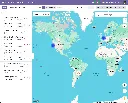
See your pipeline geographically, create leads with a single map click, and auto-fill prospect details with Google Places — all without leaving Odoo

List of modules:
  1. base_google_map
  2. base_google_map_add_place
  3. web_view_google_map
  4. web_widget_google_map
  5. web_widget_google_place_autocomplete
  6. crm_google_map
  7. crm_google_map_add_place
  8. crm_google_autocomplete
Includes all modules from previous version (v18.0, v17.0, and v16.0)

Note:
No access to Github repository.
The modules will be sent via email or a Google Drive link.


$ 60.00 $ 60.00

Add to cart

Take a look at the demo

Demo (v19.0)

Login: guest | Password: guest

Product Overview

CRM Google Maps Suite is a collection of 8 Odoo modules that brings the full power of Google Maps into your CRM workflow. It transforms the way sales teams interact with their pipeline — replacing flat lead lists with an interactive map, replacing manual address entry with one-click Google Places lookup, and replacing the friction of field prospecting with a click-to-create workflow that pre-fills every lead field automatically.

The suite is assembled in two layers. Five foundation modules deliver the shared infrastructure — API key management, the map view engine, form widgets, the Places autocomplete system, and the click-to-create framework. Three CRM application modules then wire these capabilities directly into Odoo CRM, adding a map view to leads and opportunities, Google Places autocomplete to the lead form, and click-to-create lead generation from the map. Everything works together out of the box from a single API key configured in Settings.


WHO IT'S FOR

CRM Google Maps Suite is designed for sales-focused Odoo users who need location context as part of their daily CRM workflow — from individual reps in the field to managers overseeing a regional pipeline.

Field Sales Representatives

Reps who prospect in specific areas, plan customer visits, or need to capture a lead on the spot. The click-to-create workflow lets them tap a business on the map and have a fully pre-populated lead ready to review in seconds — name, address, phone, website, and coordinates included.

Sales Managers & Team Leads

Managers who need a geographic picture of pipeline health — where deals are concentrated, which territories are underserved, and how revenue is distributed across regions. The CRM map view puts all of this on screen at a glance, with color-coded markers showing stage, expected revenue, probability, and closing date.

Business Development & Inside Sales Teams

Teams creating high volumes of leads who need fast, accurate data entry. Google Places autocomplete on the company name and street fields eliminates manual address typing and ensures every new lead has correct, geocoded address data from the moment it is created.

Odoo Administrators & CRM Implementers

System configurators who want a CRM-focused mapping deployment without installing the full Google Maps Suite. This product bundles exactly the modules needed for CRM — no more, no less — with all field mappings auto-configured on install and a single API key covering all features.


THE PROBLEM IT SOLVES

CRM data is inherently geographic — leads have addresses, territories have boundaries, and sales visits have locations. Yet Odoo's standard CRM presents all of this as rows in a list or cards in a kanban column, with no spatial context whatsoever.

Your Pipeline Has No Geography

A sales manager looking at 200 opportunities in a pipeline view cannot see which deals are clustered in the same city, which territories have no coverage, or how the geographic distribution of deals compares to the team's visit schedule. All of that context exists in the data — it just isn't visible. The CRM map view surfaces it instantly, with each lead plotted as a marker at its location and key deal details visible without opening any record.

Lead Address Entry Is a Time Tax on Sales Reps

Every time a rep creates a lead for a business they've researched, they switch to Google Maps or a browser tab to look up the address, copy it piece by piece, and paste it into separate Odoo fields — street, city, state, zip, country — then look up coordinates separately if the company uses map views at all. Google Places autocomplete eliminates this entirely: type the company name, select the suggestion, and every field is filled in one action.

Field Prospecting Requires Too Many Apps

When a sales rep is in the field and spots a business worth pursuing, the standard workflow is to open Google Maps, find the business, screenshot or note the details, open Odoo, create a lead, and manually type everything in. By the time they're done, the moment has passed. The click-to-create feature collapses this into a single map click — the rep stays in Odoo, taps the business on the map, reviews the pre-filled form, and saves.

Duplicate Leads from Repeat Prospecting

Without a link between an Odoo lead and a specific Google Maps location, the same business can be added as a lead multiple times — by different reps, on different visits, or by the same rep who forgot they'd already captured it. The suite stores a Google Place ID on every lead created from the map and checks for it on every subsequent click, opening the existing record instead of creating a duplicate.


WHAT'S INSIDE

Eight modules in total — five shared infrastructure modules that power the map view, form widget, and autocomplete engine, plus three CRM-specific modules that wire everything directly into leads and opportunities.

Foundation Layer -- Shared InfrastructureApplication Layer -- CRM Integrations

Foundation Layer -- Shared Infrastructure


MODULE 01 - FOUNDATION

Base Google Map

The root module for the entire suite. Centralizes Google Maps API key, Map ID, language, region, and color scheme configuration in Settings → General Settings → Google Maps. Provides the shared JavaScript API loader — with automatic retry, library caching, and authentication error detection — and the base OWL map component that all map views inherit, including error handling, offline detection, resize support, and ARIA accessibility.

Why It Exists

All Google Maps features across the suite — map views, autocomplete, form widgets — share a single API key and a single loader. Configure it once and every module works. No per-module API setup, no conflicting script loads, no duplicate configuration.

Module dependencies:  web base_geolocalize

MODULE 02 - FOUNDATION

Web View Google Map

Registers google_map as a first-class Odoo view type. Provides record markers with color coding, a synchronized sidebar, MarkerClusterer for large datasets, overlap handling for co-located records, Alt+drag box multi-selection for bulk actions, in-map place search, a geolocation button, nearby-records search with a configurable radius, full record action support (export, archive, duplicate, delete), and dark mode styling.

Why It Exists

This is the engine behind the CRM map view. Rather than building map rendering from scratch for CRM, the crm_google_map module builds on this shared framework — inheriting all navigation, selection, clustering, and action capabilities without duplicating any code.

Module dependencies:  base_google_map

MODULE 03 - FOUNDATION

Web Widget Google Map

A google_map form widget that embeds a Google Maps preview inside any Odoo form view. An edit button opens an interactive dialog with a draggable AdvancedMarkerElement and a Google Places search box, letting users visually position the marker and confirm coordinates before writing them back to the record. Read-only mode hides the edit controls.

Why It Exists

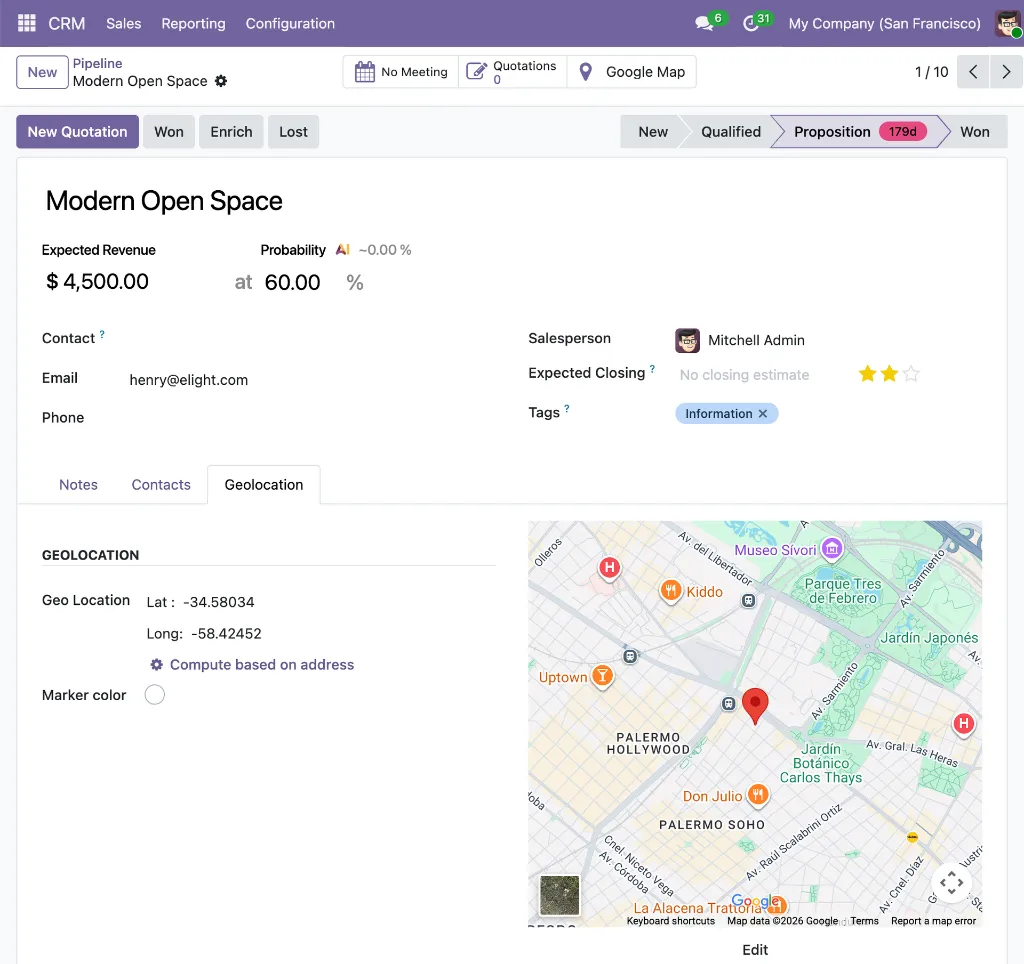
The embedded map preview on the CRM lead form's Geolocation tab is powered by this widget. It gives sales reps a visual confirmation of a lead's location without leaving the form, and provides a precision coordinate editor for cases where the address needs to be pinpointed exactly.

Module dependencies:  base_google_map web_view_google_map

MODULE 04 - FOUNDATION

Web Widget Google Map Autocomplete

Provides the gplace_autocomplete_el widget and the Google Places Mapping configuration system. A data-driven engine that maps any Google Places API response property — address components, coordinates, phone, website, display name — to any field on any Odoo model. Two modes: places (businesses and landmarks) and address (streets and routes only). All field writes are atomic. Includes a built-in live test tool for verifying mappings before deployment.

Why It Exists

The autocomplete on CRM lead forms is powered by this module. It handles the CRM-specific field mappings — company name to partner_name, coordinates to customer_latitude/customer_longitude — through configuration records that are created automatically when crm_google_autocomplete is installed.

Module dependencies:  base_google_map

MODULE 05 - FOUNDATION

Base Google Map: Add Place from Map Click

The abstract foundation for the click-to-create workflow. Provides the google_map.add_place.mixin model mixin with all the logic for fetching Google Place details from the Places API, parsing addresses via the ADR microformat and a locale-aware reverse-geocoding parser, checking for duplicates via the indexed gplace_id field, and opening a pre-populated Odoo quick-create form. Also provides the InMapClickAddPlace OWL component with its visual zoom indicator.

Why It Exists

All the complex logic for click-to-create — Places API calls, address parsing, duplicate detection, form action building — lives here once. The crm_google_map_add_place module simply inherits this mixin and provides the CRM-specific field overrides, without duplicating any of the underlying logic.

Module dependencies:  web_view_google_map


Application Layer -- CRM Integrations


MODULE 06 - APPLICATION

CRM Google Map

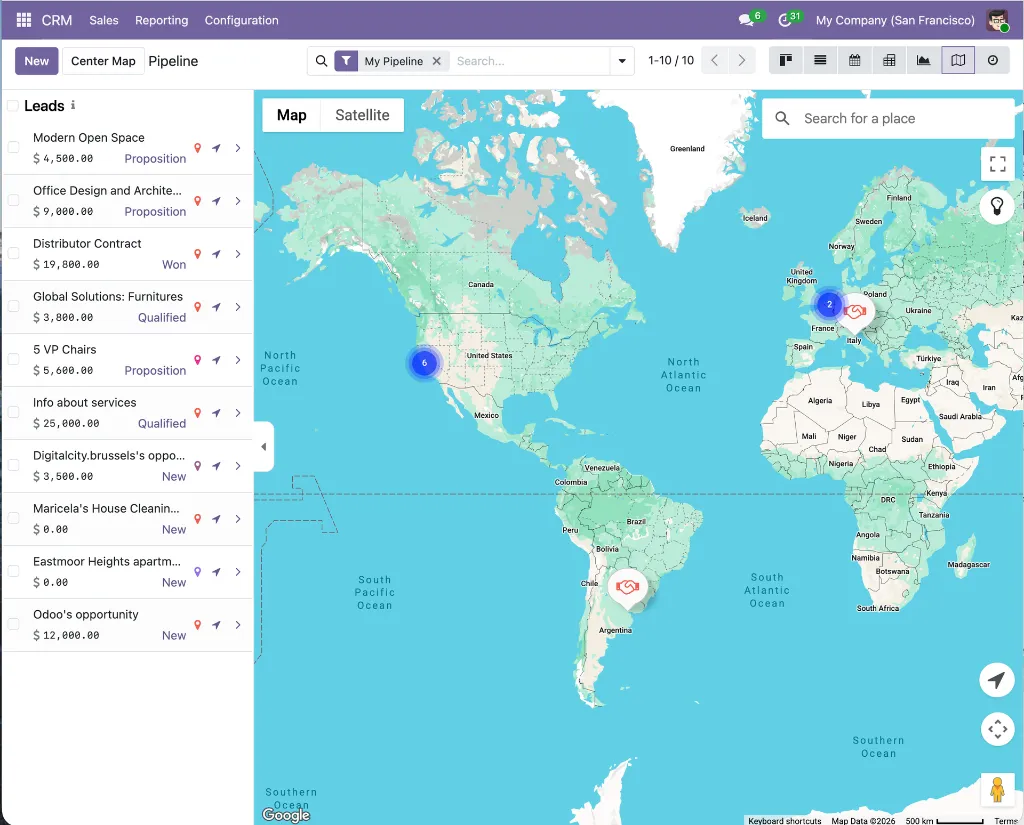
Adds a Google Map view to Leads, Opportunities, My Activities, Pipeline, and Forecast menus in Odoo CRM. Each lead renders as a custom color-coded marker displaying deal name, stage badge, linked contact, salesperson, expected revenue, probability, and expected closing date — all visible on the map without opening the record. Includes overlap handling for co-located leads, a CRM-specific sidebar showing revenue and stage, a Geolocation tab on the lead form with an embedded map preview and color picker, automatic geolocation from the linked partner, a geocode-from-address button, and a Google Map smart button that appears when coordinates are set.

Why It Exists

The standard CRM pipeline has no geographic dimension. This module adds one — letting sales managers see the spatial distribution of their pipeline at a glance and giving reps a map-based view of their territory alongside the standard list, kanban, and calendar views they already use.

Module dependencies:  crm web_view_google_map web_widget_google_map

MODULE 07 - APPLICATION

CRM Google Autocomplete

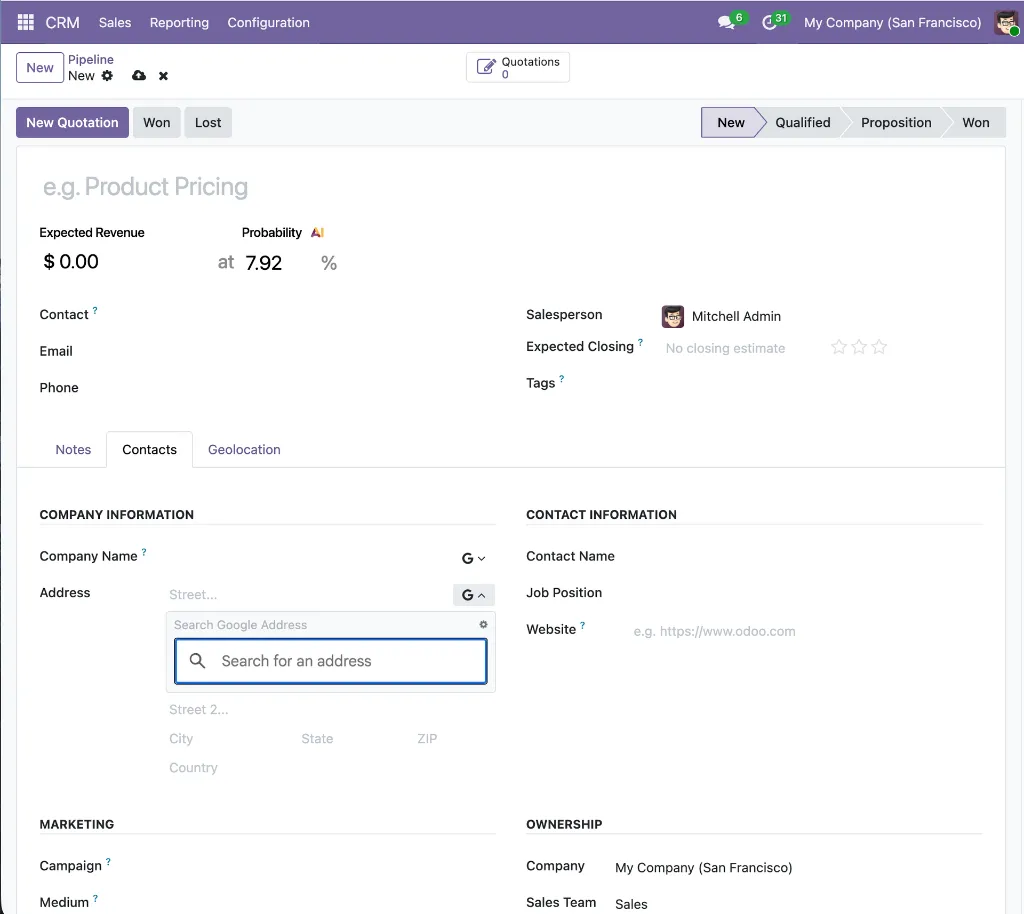
Replaces the plain company name and street inputs on the Lead/Opportunity form with Google Places autocomplete fields, applied to both the quick-entry group at the top of the form and the detailed lead tab. The company name field uses places mode — selecting a business also fills phone and website. The street field uses address mode, restricted to streets and routes. All address fields (street, street2, city, state, zip, country), geolocation coordinates (customer_latitude, customer_longitude), and contact details are populated in a single atomic write. Field mappings are configured automatically on install.

Why It Exists

Sales reps create leads under time pressure and often skip address fields or enter them inconsistently. This module removes that friction — a single selection from the company name autocomplete fills every address field and stores the coordinates, so new leads appear correctly on the CRM map view the moment they are saved.

Module dependencies:  crm web_widget_google_place_autocomplete

MODULE 08 - APPLICATION

CRM Google Map: Add Lead from Map Click

Activates the click-to-create workflow on the CRM Google Maps view. When the map is zoomed in sufficiently (zoom ≥ 15, indicated by the green indicator button), clicking a named Google Place fetches its name, address, phone, website, and coordinates from the Places API and opens a pre-populated quick-create lead form — with the opportunity title automatically set to "[Place Name]'s opportunity." Clicking empty map space reverse-geocodes the coordinate and opens a lead form with the resolved address. Duplicate detection checks gplace_id on crm.lead before opening any form. The map refreshes automatically after saving, and a notification with an "Open" link is shown for both create and update operations.

Why It Exists

Field prospecting should be fast. When a rep is on the CRM map view and spots a nearby business worth pursuing, they should be able to create a fully detailed lead in one click — without switching apps, copying data, or typing a single field manually. This module makes that possible.

Module dependencies:  web_view_google_map base_google_map_add_place crm_google_map


HOW IT WORKS

From initial setup to active field prospecting, CRM Google Maps Suite integrates seamlessly into the way your sales team already works in Odoo CRM.

1. Configure Once. Enter your Google Maps API key in Settings → General Settings → Google Maps. All 8 modules share this single configuration — no per-module setup required. Optionally set language, region, color scheme, and autocomplete country restrictions.

2. Open the CRM Google Maps view. Go to CRM → Leads or CRM → Opportunities and click the Map icon in the view switcher. Leads and opportunities with coordinates appear immediately as color-coded markers on the interactive map, alongside the standard list, kanban, and calendar views.

3. Review your pipeline geographically. Each marker card shows the deal name, stage badge, contact, salesperson, expected revenue, probability, and expected closing date — all without opening any record. Use the sidebar to scroll through leads, click a row to pan the map to that marker, or use "Find Nearby" to filter to leads within a configurable radius of any location.

4. Create leads from the Google Maps view. Zoom in until the indicator button in the top-right corner turns green. Click any named business on the map to fetch its details from Google — name, address, phone, website, and coordinates are pre-filled in a quick-create form, with the opportunity title set automatically. Save and the new lead appears on the map instantly.

5. Speed up lead entry with autocomplete. On the Lead form, type in the company name or street field to see Google Places suggestions. Selecting a company fills the full address, geolocation, phone, and website in one action — applied to both the quick-entry group and the detailed lead tab. No more switching between apps to look up addresses.

6. Manage geolocation on the lead form. Open any lead's Geolocation tab to review stored coordinates, drag the marker to a precise position, or use the geocode-from-address button to compute coordinates from the lead's address fields. Set a custom marker color to visually categorize the lead on the map.

7. Act on geographic selections. Hold Alt and drag to draw a selection box around a cluster of leads on the map. Use the action menu to export, archive, or run custom actions on the selected records — without switching to a list view.

All map views support dark mode in the enterprise version, keyboard shortcuts, marker clustering for large pipelines, and offline detection with automatic retry — maintaining a consistent experience in the field and in the office.


KEY FEATURES

A focused set of capabilities built specifically around the CRM workflow — from pipeline visualization and address entry to field prospecting and geographic lead management.

CRM Map View & Pipeline Visualization
  • Map View Across CRM Menus
  • Available on Leads, Opportunities, My Activities, Pipeline, and Forecast alongside the standard list, kanban, and calendar views — no workflow disruption.
  • CRM Marker Card
  • Each lead renders as a styled marker showing deal name, stage badge, linked contact, salesperson, expected revenue, probability, and expected closing date — all visible without opening the record.
  • Marker Color Customization
  • Each lead has a configurable marker color set via a color picker on the Geolocation tab, enabling visual categorization by territory, priority, salesperson, or stage.
  • Overlap Handling
  • Leads at the same address are offset so each marker remains individually clickable, with a visual indicator and tooltip flagging the shift.
  • CRM Sidebar
  • A scrollable panel lists all leads with expected revenue and pipeline stage. Clicking a row highlights the corresponding marker and pans the map to it.
Google Places Autocomplete
  • Company Name Autocomplete (Places Mode)
  • Applied to both the quick-entry group and the detailed lead tab; selecting a business also fills phone and website in addition to all address fields.
  • Street Field Autocomplete (Address Mode)
  • Restricted to streets and routes only, applied in both form locations, ensuring clean street-level address data.
  • Full Address Auto-Fill
  • Street (number + route, country-aware ordering), street2, city, state, zip, and country populated in a single atomic write on selection.
  • Geolocation Auto-Fill
  • customer_latitude and customer_longitude stored automatically on selection — new leads are geocoded at entry with no separate step.
  • Zero Configuration
  • google.places.mapping records for crm.lead are created automatically by a post-install hook — no manual mapping setup required.
Click-to-Create Leads from Google Maps
  • Named Place Click
  • Clicking a Google Place fetches name, address, phone, website, and coordinates from the Places API; the opportunity title is auto-set to "[Place Name]'s opportunity."
  • Empty Location Click
  • Clicking any map location that isn't a named place reverse-geocodes the coordinate via the Geocoding API and opens a pre-filled lead form.
  • Duplicate Detection
  • The indexed gplace_id field on crm.lead is checked before opening any create form; if a match is found, the existing lead opens instead.
  • Visual Zoom Indicator
  • A button in the map's top-right corner turns green at zoom ≥ 15; clicking it while zoomed out auto-zooms and pans to the nearest visible lead marker.
  • Auto Map Refresh
  • After saving the quick-create form, the map reloads automatically and a notification with an "Open" link confirms the creation or update.
Geolocation Tools on the Lead Form
  • Geolocation Tab
  • A dedicated tab on the lead form shows stored coordinates, an embedded map preview, a geocode-from-address button, and the marker color picker in one place.
  • Auto-Geolocation from Partner
  • When a partner is linked to a lead, customer_latitude and customer_longitude are automatically set from the partner's stored coordinates.
  • Geocode from Address
  • A button calls Odoo's geocoding service using the lead's address fields, enabling coordinate resolution for leads without a linked partner or autocomplete selection.
  • Nearby Records Search
  • From any lead marker or sidebar row, filter the map to leads within a configurable radius (default 1,000 m). A rectangle overlay shows the search area and the view title updates to reflect the context.

USE CASES & BENEFITS

Geographic Pipeline Visibility

Sales managers see the full pipeline on a map — deal stage, revenue, and probability visible on each marker — making territory gaps and revenue concentrations immediately apparent without any export or reporting.

One-Click Field Prospecting

Reps in the field click a business on the CRM map and a fully pre-populated lead opens instantly — name, address, phone, website, and coordinates from Google, opportunity title set automatically. No app switching, no manual typing.

Faster, Cleaner Lead Data Entry

Google Places autocomplete on the company name and street fields fills every address field, phone, website, and coordinates in one selection — ensuring new leads are complete and geocoded from the moment they are created.

Territory-Based Prospecting

Use "Find Nearby" to surface leads within a configurable radius of any location. Plan visit routes around existing leads, identify clusters worth targeting, and make every customer visit an opportunity to prospect the surrounding area.

No Duplicate Leads

The Google Place ID stored on each map-created lead prevents the same business from being added twice — by different reps, on repeat visits, or through oversight. The existing lead opens instead of creating a duplicate.

Address Data Quality at the Source

Every address entered via autocomplete is a verified Google Places result — structured, correctly formatted, and geocoded. No more typos, missing postal codes, or leads that don't appear on the map because coordinates were never set.

Bulk Actions on Geographic Clusters

Box-select a cluster of leads on the map with Alt+drag and apply bulk actions — archive, export, assign to a salesperson — directly from the map view without switching to a list or kanban.

Instant Location Confirmation

The embedded map preview on the lead form's Geolocation tab lets reps confirm a lead's location at a glance, drag the marker to a more precise position, or geocode the address with one click — all without leaving the form.


WHO IT'S FOR

CRM Google Maps Suite is ideal for sales teams of any size that work with location data — field reps who prospect geographically, managers who need pipeline visibility by territory, and operations teams who want accurate, geocoded lead data from day one.


WHAT'S IN THE BUNDLE

Eight modules in install-dependency order — five shared infrastructure modules followed by three CRM-specific integrations for map views, autocomplete, and click-to-create.

Foundation Modules

1. base_google_map
Centralized API key configuration, JavaScript API loader, and base OWL map component
2. web_view_google_map
The google_map view type with markers, sidebar, clustering, selection, and nearby search
3. web_widget_google_map
Embedded map preview widget and interactive coordinate editor for form views
4. web_widget_google_place_autocomplete
Configurable Places autocomplete widget and the Google Places Mapping system
5. base_google_map_add_place
Abstract mixin and UI component for the click-to-create workflow

CRM Modules
6. crm_google_map
Google Map view for Leads and Opportunities with CRM marker cards, geolocation tab, and smart button
7. crm_google_autocomplete
Google Places autocomplete on Lead company name and street fields with auto-configured field mappings
8. crm_google_map_add_place
Click-to-create CRM leads directly from the CRM map view with duplicate detection and auto-refresh


Your Dynamic Snippet will be displayed here... This message is displayed because youy did not provide both a filter and a template to use.

Customer Reviews

©2026 Mithnusa
Powered by Odoo - The #1 Open Source eCommerce

We use cookies to provide you a better user experience on this website. Cookie Policy

Only essentials I agree